 Domains SearchSearch available domain names and claim yours in just a few clicks.
 .GH DomainsFind and register a trusted .gh domain for your business or idea.
 Web HostingAffordable web hosting solutions designed for performance, uptime, and scalability.
 cPanel HostingManage your website without the stress. cPanel hosting gives you everything in one place.
 Reseller HostingCreate, manage, and grow your hosting clients using reliable reseller hosting tools.
 Windows HostingWindows hosting that works smoothly with Microsoft frameworks and applications.
 Email HostingProfessional email hosting that keeps your business communication reliable and secure.
 WordPress HostingFast and secure WordPress hosting optimized for smooth performance and easy management.
 Affiliate ProgramEarn commissions by referring customers to our hosting and domain services.
 .COM Domains
 All DomainsFind the right Ghana domain for your brand and lock it in fast.
 Domain TransferMove your domain to us with a smooth, secure transfer process.
 Whois LookupCheck domain ownership and registration details instantly with our WHOIS lookup.
 SSL CertificatesSecure your website and protect your visitors with trusted SSL certificates.
 VPS HostingUpgrade to VPS hosting today and enjoy better speed, uptime, and flexibility.
 Managed VPSManaged VPS for businesses and developers who want full control without server management worries.
 Dedicated ServersGet maximum speed and reliability with dedicated servers built for serious websites and apps.
 AI Website BuilderStart your website today with our AI builder and go live in minutes.
 Online ShopStart selling online today with your own professional online shop.
 Web Design ServiceProfessional web design services that make your brand stand out online.
 Local SEO
 BlogHelpful articles, tutorials, and updates for building your online presence.
 Contact UsNeed help or more information? Connect with us anytime.
RAM is one of the most important resources on a VPS, since it determines how much data and how many processes your server can keep readily available at any given moment.
Without enough of it, even a well-configured server can feel sluggish under everyday use.
Getting this decision wrong in either direction causes problems.
Too little RAM leads to slowdowns, crashes and frustrated visitors. Too much RAM simply means paying for capacity that sits unused every month.
That said, more RAM is not automatically better.
A simple website may run perfectly well with just 1 to 2 GB, while ecommerce stores, multiple websites, databases and heavier applications may genuinely need 4 GB, 8 GB or more to stay responsive under real-world conditions.
The real question of how much RAM do you need for a VPS depends on what you are actually running, how much traffic you receive, and how many applications or services your server needs to handle at once.
Answering it properly upfront saves you from either overpaying for unused capacity or scrambling to upgrade later.
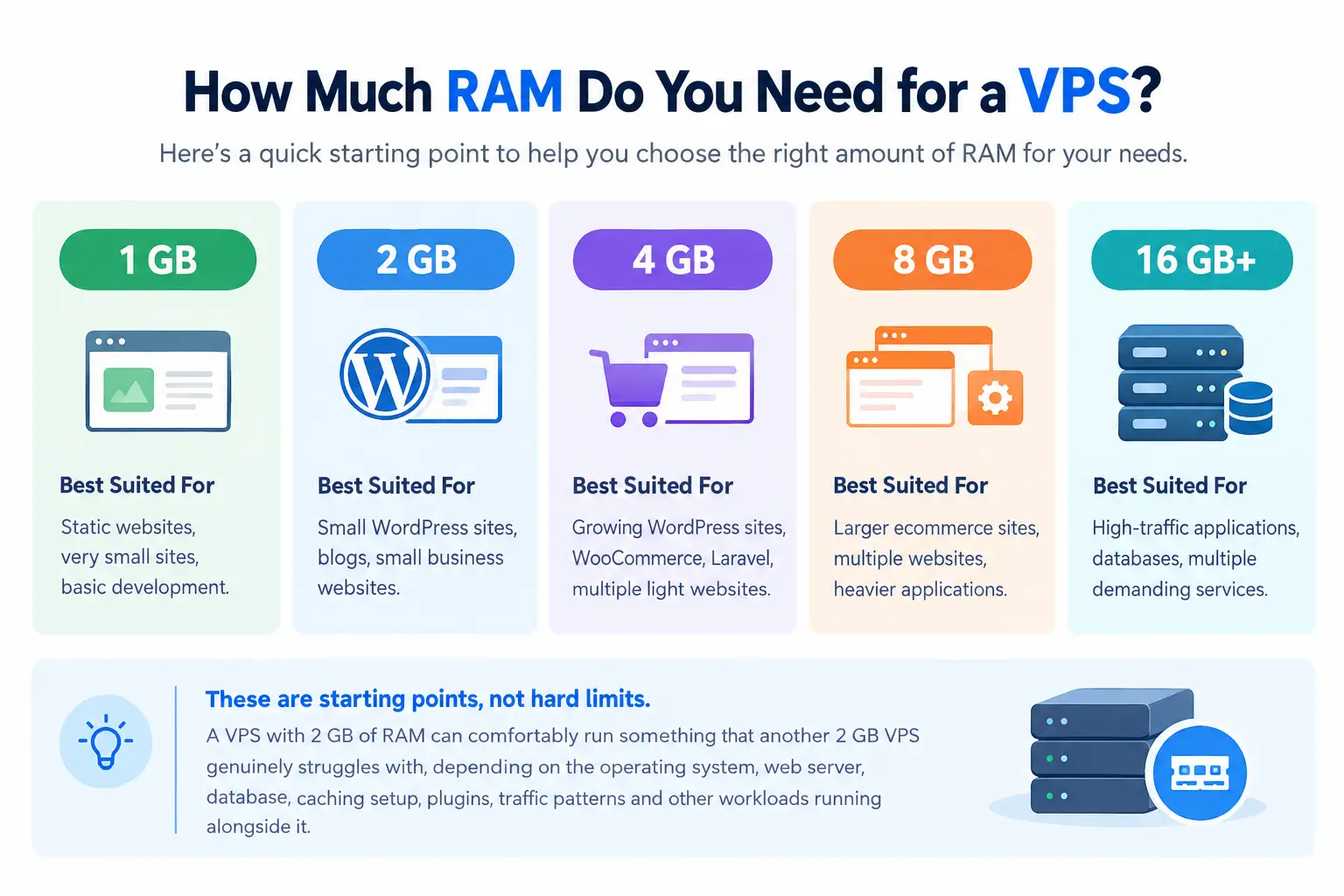
How Much RAM Does a VPS Need?
Here is a quick starting point before we get into the details of each RAM tier below.
| VPS RAM | Best Suited For |
|---|---|
| 1 GB | Static websites, very small sites, basic development |
| 2 GB | Small WordPress sites, blogs, small business websites |
| 4 GB | Growing WordPress sites, WooCommerce, Laravel, multiple light websites |
| 8 GB | Larger ecommerce sites, multiple websites, heavier applications |
| 16 GB+ | High-traffic applications, databases, multiple demanding services |
It is worth being clear that these are starting points, not hard limits set in stone.
A VPS with 2 GB of RAM can comfortably run something that another 2 GB VPS genuinely struggles with, depending on the operating system, web server, database, caching setup, plugins, traffic patterns and other workloads running alongside it.
This is exactly why answering how much RAM do you need for a VPS requires looking at your actual setup, rather than picking a number off a generic chart and assuming it applies universally.
What Uses RAM on a VPS?
Before deciding how much RAM you need, it helps to know exactly what is consuming it in the first place.
Each service running on your server claims its own share, and these shares add up faster than most people expect.
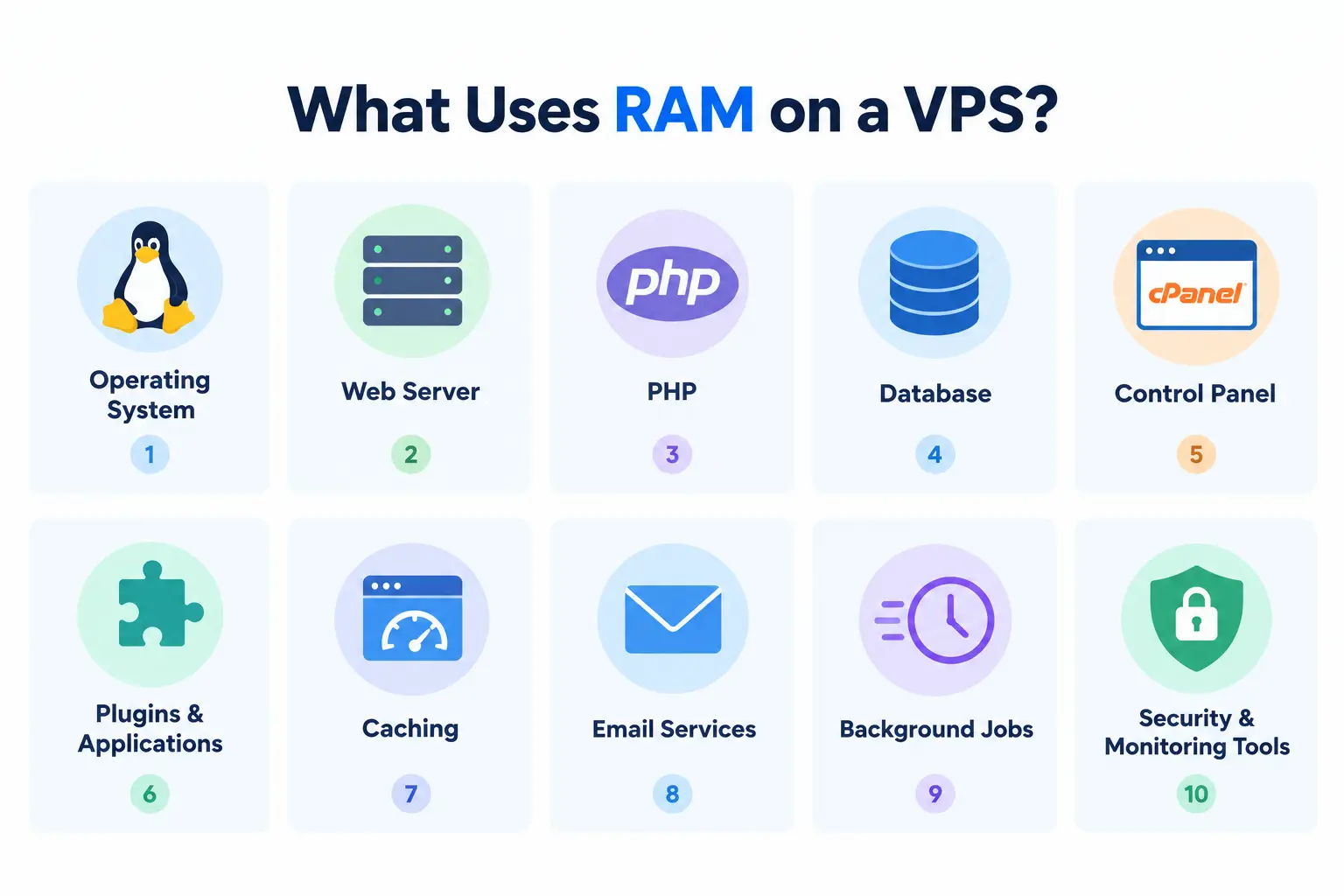
1) Operating System
Your VPS’s operating system needs memory before your website even starts running.
This baseline usage exists regardless of what you eventually deploy on top of it.
Lightweight Linux distributions tend to use less than heavier alternatives, which is worth factoring in if every gigabyte counts.
2) Web Server
Apache, Nginx or whichever web server you are running consumes RAM to handle incoming requests and serve your content to visitors.
3) PHP
For PHP-based websites, PHP workers and processes consume memory as they execute your site’s code.
More simultaneous requests generally mean more active PHP processes running at once.
4) Database
MySQL, MariaDB, PostgreSQL and similar database systems require their own dedicated share of RAM to function efficiently, particularly as your data grows.
Larger tables and frequent queries both increase this demand over time.
5) Control Panel
cPanel and other server control panels add their own resource requirements on top of everything else running on the server, since the panel itself needs memory to operate.
6) Plugins and Applications
Poorly optimized plugins or applications can consume significant memory, sometimes far more than their functionality would suggest.
This is one of the more common hidden sources of RAM pressure.
Auditing installed plugins periodically can reveal a few surprisingly heavy ones worth removing.
7) Caching
Caching can meaningfully improve performance, but it also uses memory, with the exact amount depending heavily on your specific caching setup and configuration.
8) Email Services
If email is hosted on the same VPS as your website, mail services consume additional resources that need to be factored into your overall RAM planning.
9) Background Jobs
Cron jobs, queues, scheduled tasks and background workers also require memory, even though they often run invisibly in the background without much attention.
10) Security and Monitoring Tools
Firewalls, malware scanners, monitoring software and other protective services add to your overall memory usage, on top of everything directly related to serving your website.
These tools are easy to overlook when estimating RAM needs, yet they run continuously in the background regardless of visitor traffic, quietly consuming their share around the clock.
How Much RAM Do You Need Based on Traffic?
Traffic should never be the only factor you consider, since 10,000 visitors to a simple cached site can actually be less demanding than a much smaller number of users interacting with a complex application.
Still, traffic is a useful general reference point.
| Traffic Level | Suggested RAM |
|---|---|
| Low Traffic | 1 to 2 GB |
| Growing Traffic | 2 to 4 GB |
| Moderate Traffic | 4 to 8 GB |
| High Traffic | 8 to 16 GB or more |
It is worth knowing that traffic type plays a bigger role than raw visitor count alone.
A cached, largely static informational website and a real-time application with many logged-in users can have dramatically different resource requirements, even with similar visitor numbers on paper.
One serves nearly identical content repeatedly, while the other generates fresh data for every single request.
How Do You Know Your VPS Needs More RAM?
A few clear signs tend to show up when a server has genuinely outgrown its current RAM allocation.
Spotting these early can prevent a minor slowdown from turning into a full outage.
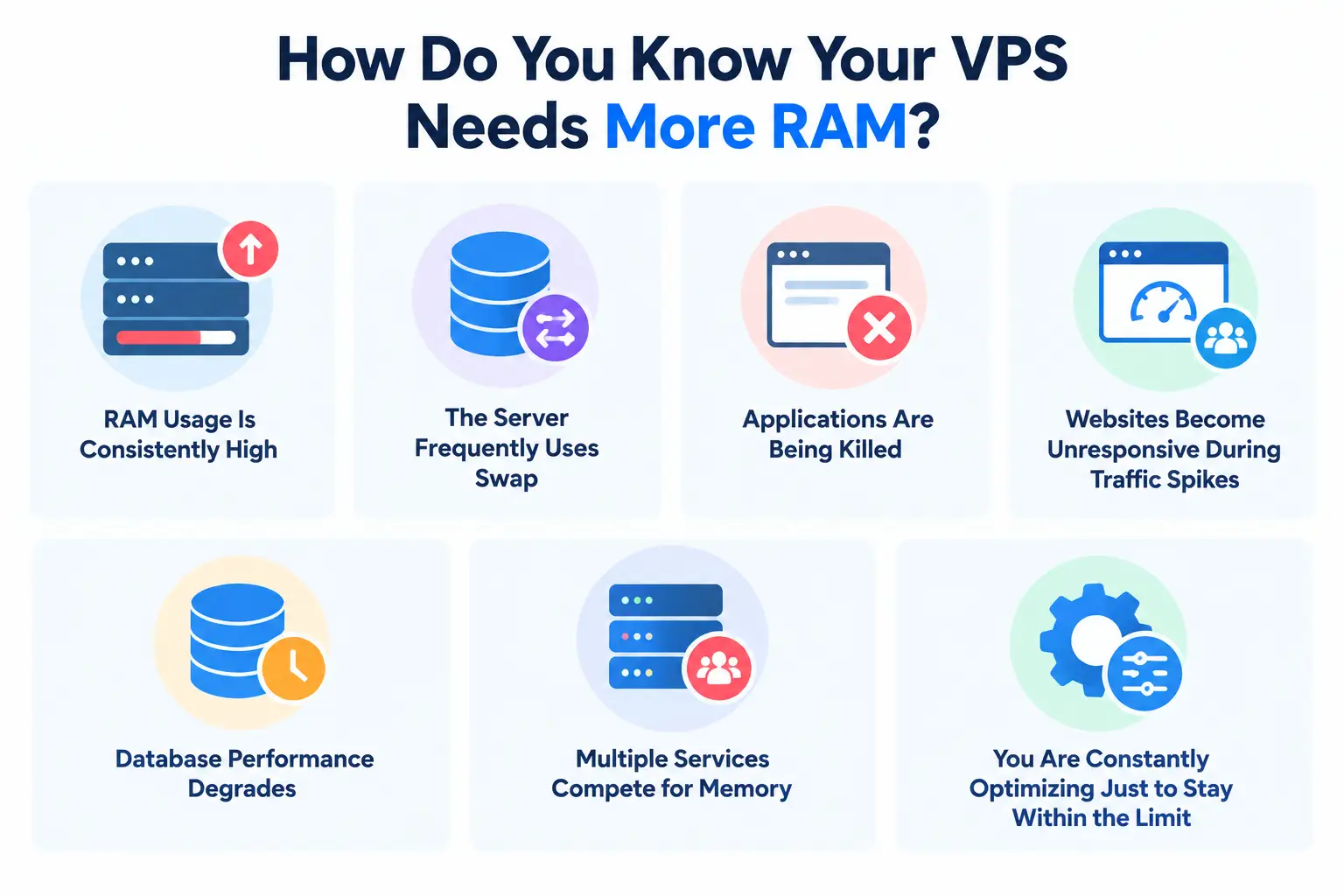
1) RAM Usage Is Consistently High
If your server’s RAM usage sits consistently near its limit rather than fluctuating normally, this is a reasonable early signal worth paying attention to.
2) The Server Frequently Uses Swap
Swap is disk space your server borrows to act as overflow memory when physical RAM runs out.
Since disk access is far slower than RAM, relying on swap regularly is a strong sign of genuine memory pressure.
Occasional light swap use is normal, but heavy, constant swapping usually means an upgrade is overdue.
3) Applications Are Being Killed
Memory exhaustion can cause processes to fail or get terminated outright by the operating system, which is a fairly direct indication that your current RAM allocation is not enough.
Seeing this happen more than once is a clear signal to investigate further rather than simply restarting the affected service.
4) Websites Become Unresponsive During Traffic Spikes
If your website slows down or becomes unresponsive specifically during busier periods, this often points to insufficient RAM struggling to keep up with increased demand.
This pattern tends to repeat every time traffic climbs, rather than happening once and never again.
5) Database Performance Degrades
A database that performs noticeably worse under load, particularly with slower queries than usual, can be a sign that it does not have enough memory available to operate efficiently.
Query times that gradually creep upward over several weeks are worth tracking closely.
6) Multiple Services Compete for Memory
When several services on your server are all fighting for the same limited memory pool, overall performance tends to suffer across the board, not just for one specific service.
A database slowdown, for example, can end up dragging down web server response times too.
7) You Are Constantly Optimizing Just to Stay Within the Limit
If you find yourself repeatedly tweaking configurations just to keep your server functional within its current RAM ceiling, this constant firefighting is often a sign that upgrading makes more sense than continuing to optimize around a hard limit.
At some point, the time spent squeezing out small gains costs more than simply moving to a larger plan.
It is worth being careful here.
Do not upgrade your RAM based on a single temporary spike, such as one unusually busy day.
Look for consistent, repeated patterns over time before deciding an upgrade is genuinely necessary.
How to Calculate How Much VPS RAM You Need
Here is a simple framework to help you plan, rather than guessing at a number.
Working through each piece individually gives a far more realistic estimate than picking a plan based on gut feeling alone.
Required RAM is roughly equal to Operating System plus Server Software plus Applications plus Database plus Control Panel plus a Safety Buffer.
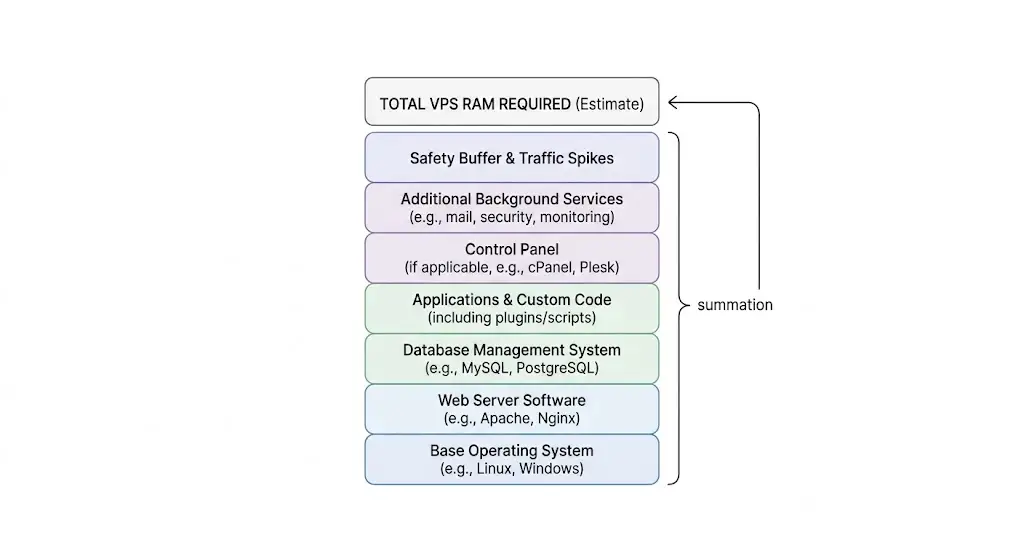
1) Estimate Base System Usage
Start with a rough estimate of how much RAM your operating system alone consumes before anything else is running.
2) Add Web Server Requirements
Factor in the memory your chosen web server typically needs under your expected level of traffic.
3) Add Database Requirements
Include the RAM your database system needs, particularly if you are running anything data-heavy or frequently queried.
4) Add Website or Application Requirements
Account for your specific website or application, including plugins, custom code and any additional services it depends on.
5) Add Control Panel Requirements
If you are using a control panel like cPanel, include its typical resource footprint in your overall estimate.
6) Add Other Services
Factor in anything else running on the server, such as email, monitoring tools, security software or background jobs.
7) Leave Room for Traffic Spikes
Finally, build in a reasonable buffer for unexpected traffic increases, rather than sizing your server exactly to your average day.
A launch, a promotion, or unexpected press coverage can all push usage well above normal levels overnight.
It is worth being clear that this formula is a planning framework, not an exact scientific calculation.
Real-world usage varies enough that this approach should guide your decision rather than dictate it precisely.
Choose the Right VPS RAM
Truehost’s VPS range gives customers different resource levels to choose from, rather than forcing every project into a single fixed configuration.
Current plans on the Ghana storefront include 1 GB, 2 GB, 4 GB and 8 GB RAM configurations, each paired with different CPU, storage and transfer allocations to match.
Having several tiers available makes it far easier to answer how much RAM do you need for a VPS with a plan that actually fits, rather than settling for whatever single configuration a more limited provider happens to offer.
1) Start With Your Current Workload: Base your decision on what you are actually running today, rather than an imagined future project that may never materialize. It is easy to overestimate needs when planning for a hypothetical scenario instead of your real, current workload.
2) Choose the RAM You Actually Need: Use the guidance throughout this article to land on a realistic figure, rather than defaulting to the biggest number available simply because it sounds safer. A carefully chosen mid-tier plan often outperforms an oversized one paired with poor configuration.
3) Leave Room for Growth: While you should avoid overpaying for capacity you do not need, it still helps to leave a reasonable margin for your website or application to grow into over time. A small buffer today can save you an urgent, stressful upgrade a few months down the line.
4) Compare CPU and Storage Alongside RAM: RAM is important, but it is only one part of the picture. Compare it alongside CPU and storage to make sure your overall plan is genuinely balanced for your workload. A server with abundant RAM but an underpowered CPU can still bottleneck under heavy processing tasks, so all three resources deserve attention together rather than in isolation. Storage speed plays a role here too, since slow disk access can drag down performance even when RAM and CPU are both sufficient.
5) Scale When Your Resource Usage Increases: Choose a provider that makes scaling straightforward, so you can upgrade smoothly once your actual usage patterns justify it, rather than guessing far in advance. A provider offering easy upgrades removes much of the pressure to overestimate your needs from day one.
Do not simply buy the VPS with the most RAM available and assume that solves everything.
Choose a Truehost VPS configuration that genuinely matches your website, application or business workload, then scale up as your resource needs actually grow over time.
That approach keeps your hosting costs sensible while still giving you room to expand whenever the need genuinely arises.