 Domains SearchSearch available domain names and claim yours in just a few clicks.
 .GH DomainsFind and register a trusted .gh domain for your business or idea.
 Web HostingAffordable web hosting solutions designed for performance, uptime, and scalability.
 cPanel HostingManage your website without the stress. cPanel hosting gives you everything in one place.
 Reseller HostingCreate, manage, and grow your hosting clients using reliable reseller hosting tools.
 Windows HostingWindows hosting that works smoothly with Microsoft frameworks and applications.
 Email HostingProfessional email hosting that keeps your business communication reliable and secure.
 WordPress HostingFast and secure WordPress hosting optimized for smooth performance and easy management.
 Affiliate ProgramEarn commissions by referring customers to our hosting and domain services.
 .COM Domains
 All DomainsFind the right Ghana domain for your brand and lock it in fast.
 Domain TransferMove your domain to us with a smooth, secure transfer process.
 Whois LookupCheck domain ownership and registration details instantly with our WHOIS lookup.
 SSL CertificatesSecure your website and protect your visitors with trusted SSL certificates.
 VPS HostingUpgrade to VPS hosting today and enjoy better speed, uptime, and flexibility.
 Managed VPSManaged VPS for businesses and developers who want full control without server management worries.
 Dedicated ServersGet maximum speed and reliability with dedicated servers built for serious websites and apps.
 AI Website BuilderStart your website today with our AI builder and go live in minutes.
 Online ShopStart selling online today with your own professional online shop.
 Web Design ServiceProfessional web design services that make your brand stand out online.
 Local SEO
 BlogHelpful articles, tutorials, and updates for building your online presence.
 Contact UsNeed help or more information? Connect with us anytime.
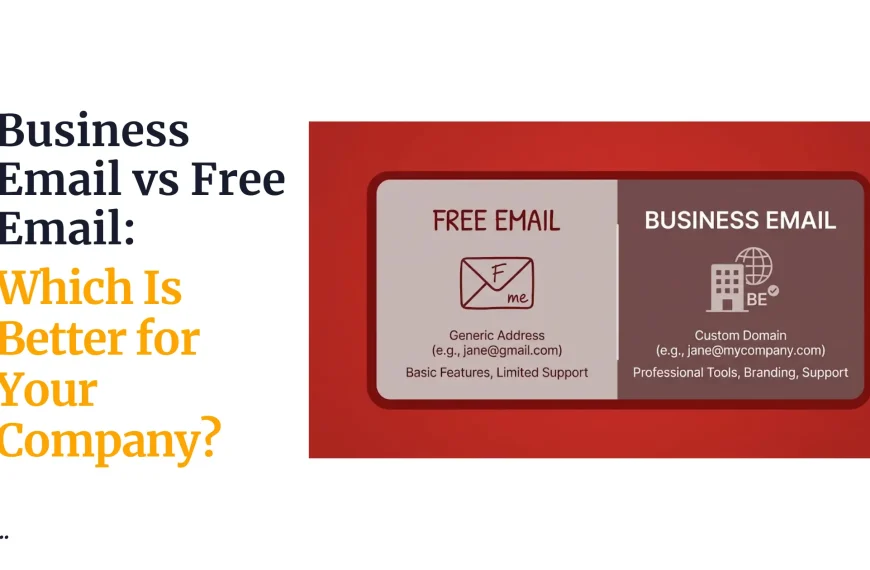
Picture two business cards.
One says [email protected]. The other says [email protected]. Same company, same owner.
But the second one looks like a business that’s here to stay, and customers are more likely to trust it.
That’s the whole reason to create your professional email.
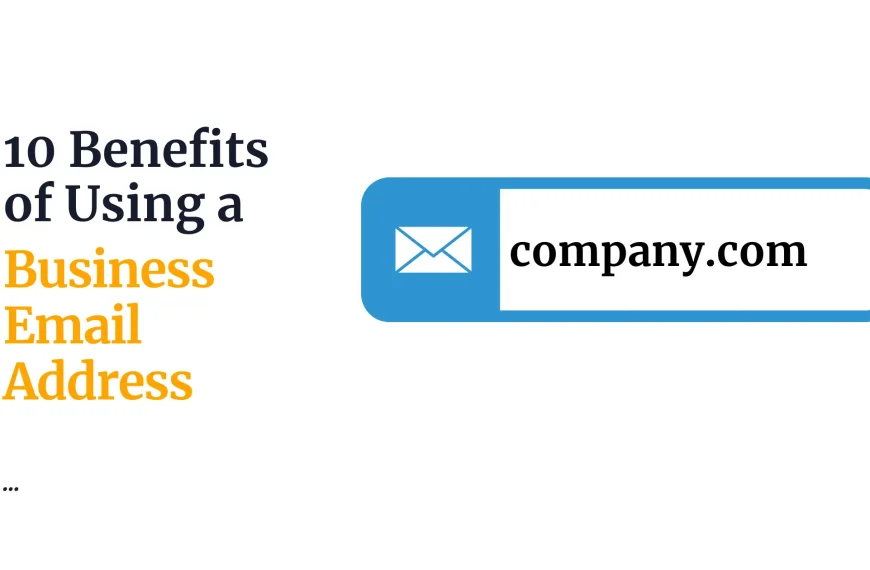
A domain-based address ties your messages to your brand.
It also gives you more control, since you can set up addresses for individual employees and for departments like sales, support and billing.
The process has three parts. You choose a domain, pick an email hosting plan and configure the mailbox.
None of it is hard, but a few details trip people up, especially DNS records.
This guide covers the requirements, the setup steps, some examples and the common mistakes.
What You Need to Create a Professional Email Address
Before you start, get three things in place.
- A domain name. This is the part after the @ symbol, like
yourbusiness.com. It’s your business’s address on the internet, and your email will use it. - Email hosting. This is a service that stores and manages your incoming and outgoing messages. It keeps your mailboxes running and your mail safe. You can buy it as a standalone plan, or sometimes as part of a web hosting package.
- Access to your domain settings. You’ll need this to connect the domain to the email service. That connection happens through DNS records, which tell the internet where to send your mail.
Here’s some good news. If you already own a domain, you don’t need to register another one. You can use the one you have, as long as you control its DNS settings.
Check where your domain is registered, and make sure you can log in and edit its records.
How to Create a Professional Email Address Step by Step
1) Choose a Domain Name for Your Business
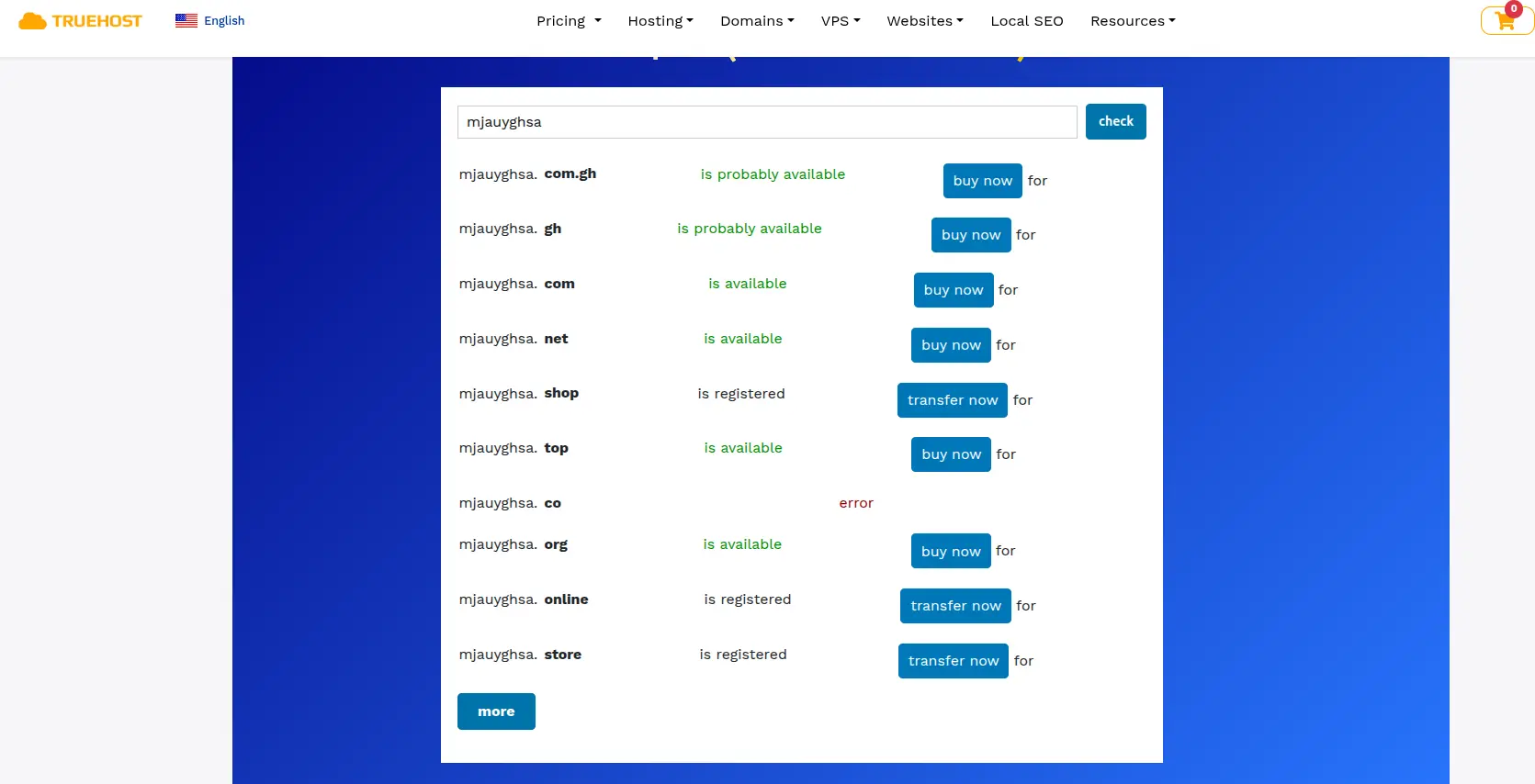
Your domain should match your business name or brand. Short and simple wins.
If people can’t spell it, they’ll mistype your address and your emails won’t arrive.
Say your business is called Bright Star. Your domain might be brightstar.com. You could then create addresses like these:
The first three are role-based, so they work for a department or a purpose. The last one is personal, for a specific team member.
One rule applies before anything else. The domain has to be registered and active before you can connect it to email hosting.
If you’re buying a new domain, finish that first. If you already own one, confirm it hasn’t expired.
2) Choose an Email Hosting Provider
Providers differ more than you’d think. Before you buy, compare these points:
- Number of mailboxes included. Count the addresses you need.
- Storage per mailbox. More space helps if you handle attachments.
- Spam filtering and security. Look for spam filters, virus scanning and two-factor authentication.
- Webmail and mobile access. You’ll want to check mail on a phone.
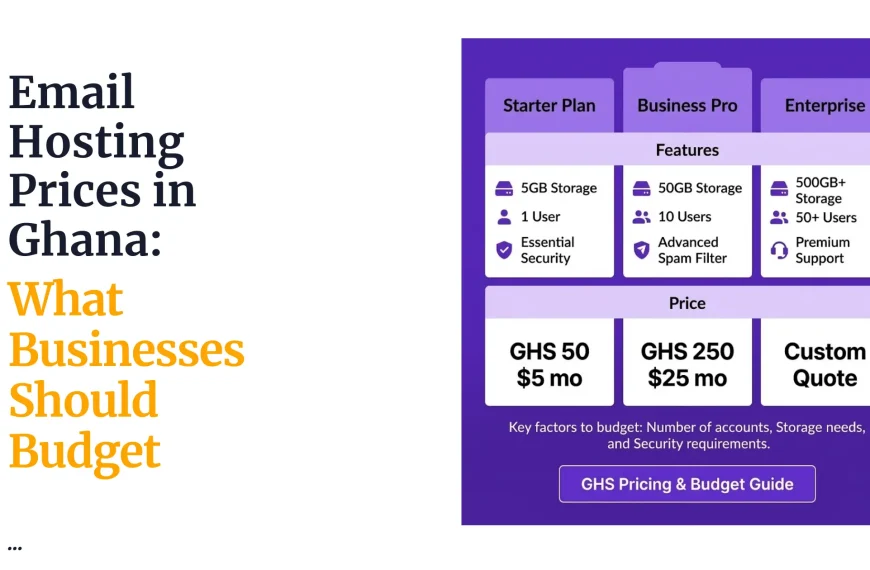
- Renewal price and billing period. A cheap first year can turn expensive later.
- Support for custom domains. Make sure you can use your own domain, not a provider’s.
Truehost is one option for businesses that want professional email on their own domain.
It offers Workplace email plans that pair business mailboxes with an office suite. Compare it against other providers using the checklist above.
3) Select an Email Hosting Plan
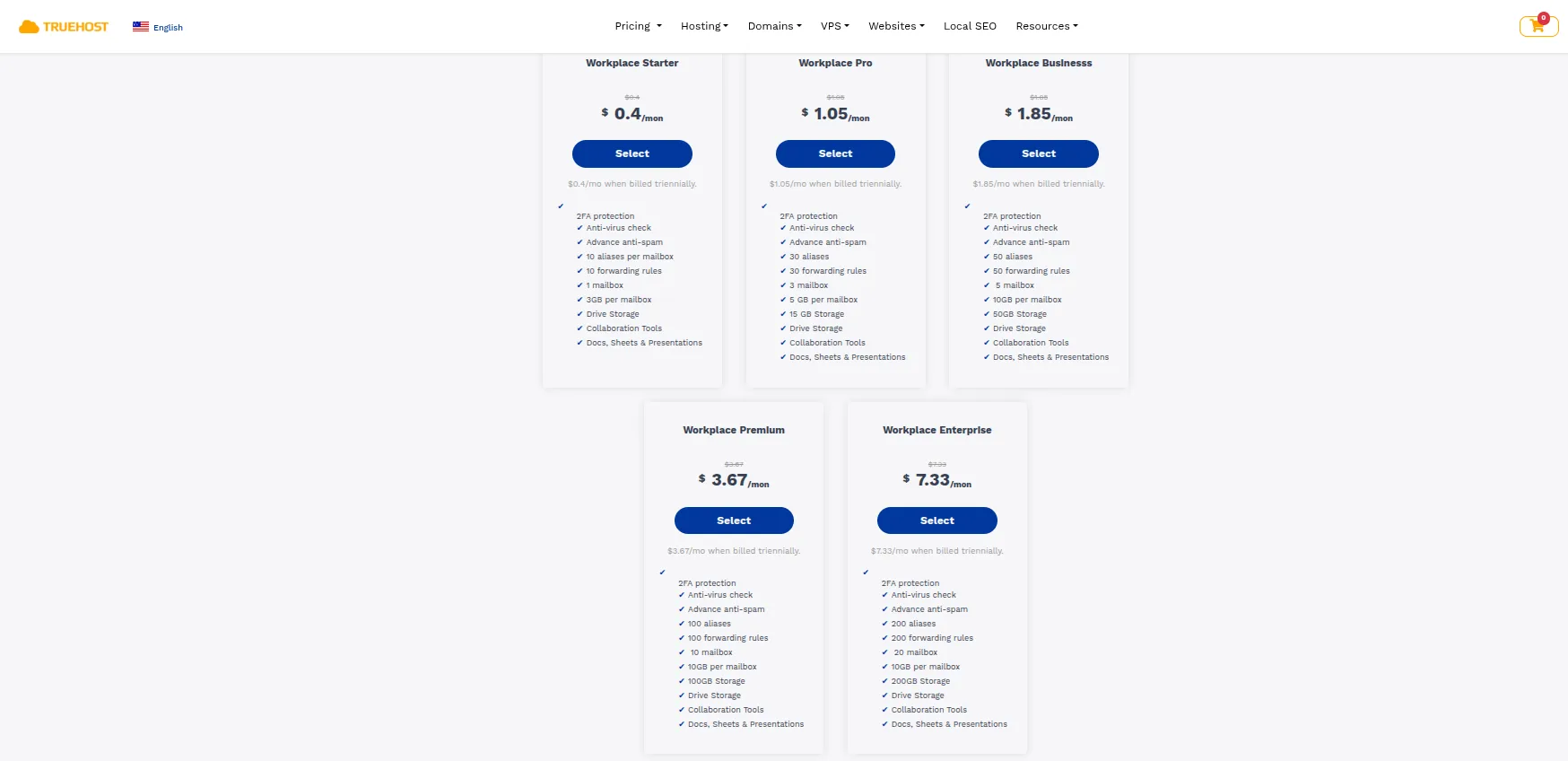
Pick a plan based on how many people need their own inbox and how much storage each one needs. Here are three common situations.
- One mailbox for a sole proprietor. If you work alone, a single mailbox is often enough. You might use info@ or your own name, and forward other addresses to it.
- Separate mailboxes for sales, support and management. A small business with a few roles may want three or more addresses. A plan that bundles several mailboxes can cost less than paying per user.
- Individual mailboxes for a growing team. As you hire, each person needs a login. Choose a plan you can scale, or one with a clear upgrade path.
Start with what you need now, then add a little room for the next year. Going too small means upgrading soon.
Going too big means paying for space you don’t use.
Visit Truehost to review available email hosting plans and current prices.
4) Create Your Email Account
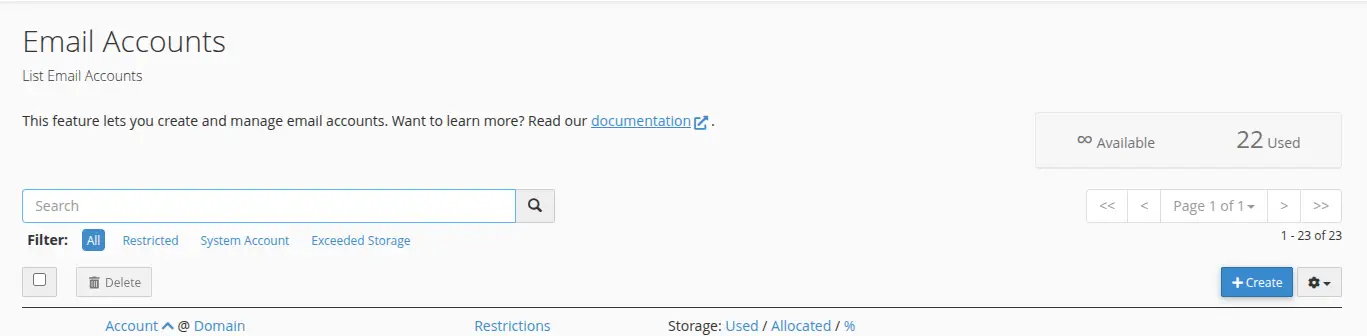
Once you’ve bought a plan, the process is similar across most providers. Here’s the general flow.
First, open the provider’s email management interface.
You’ll usually find it in your account area after you log in.
Then pick the domain you want to use. Next, enter the mailbox name, which is the part before the @. Finally, set a strong password.
Good mailbox names include [email protected], [email protected] and [email protected]. Keep them simple.
Menu names and button labels differ from provider to provider, and they change over time. So follow your provider’s own setup instructions for the exact clicks.
If your provider offers a step-by-step guide or a help article, use it alongside this one.
5) Connect Your Domain to the Email Hosting Service
This is the step that makes email work. Your domain may need DNS records so that mail is routed correctly.
Think of DNS records as instructions that tell the internet where your email lives and who’s allowed to send it.
Here are the four you’ll hear about most.
- MX records. These tell other mail servers where to deliver messages for your domain. Without the right MX records, incoming mail won’t reach your mailbox.
- SPF. This helps identify which servers are allowed to send email for your domain. It cuts down on people faking your address.
- DKIM. This adds a cryptographic signature to your outgoing messages. Receiving servers can use it to check that a message really came from you and wasn’t changed on the way.
- DMARC. This tells receiving servers how to handle messages that fail authentication checks. For example, it can say to flag them or reject them.
Here’s the important warning. The exact values must come from your email provider. Don’t copy generic DNS values from another provider’s guide or a random website.
Your provider will give you the specific records for its service. Copy them carefully, because one wrong character can break delivery.
After you save the records, give them time to take effect. That can take anywhere from a few minutes to a day or more.
6) Access Your New Professional Email
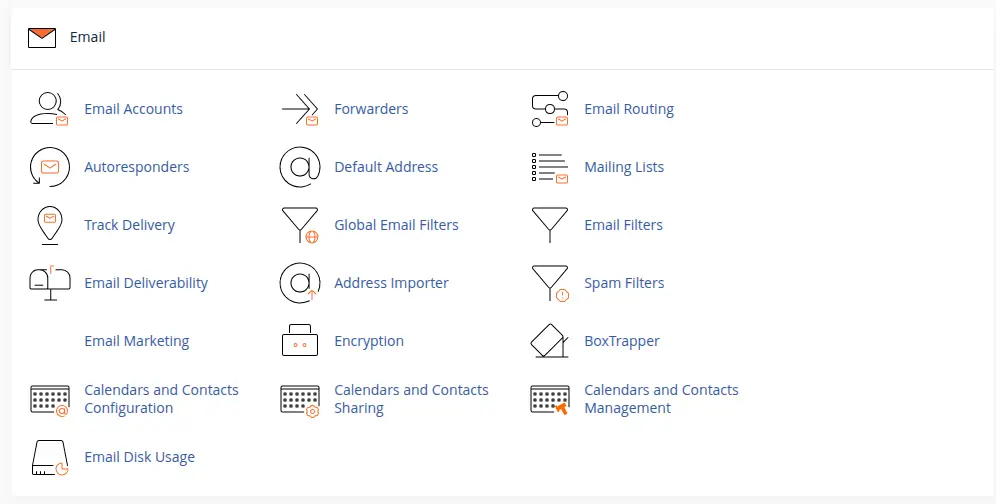
Now you can start using the mailbox. There are two common ways.
The first is webmail. You sign in through your provider’s webmail page in a browser. It’s the quickest way to check that everything works.
The second is an email app on your phone or computer. You add the account to a supported app, like the mail app already on your device.
Have these details ready:
- Your full email address
- Your password
- The provider’s correct incoming mail server settings
- The provider’s correct outgoing mail server settings
Use the settings your provider publishes. Server names, ports and security options vary, so don’t guess.
7) Test Your Email Address
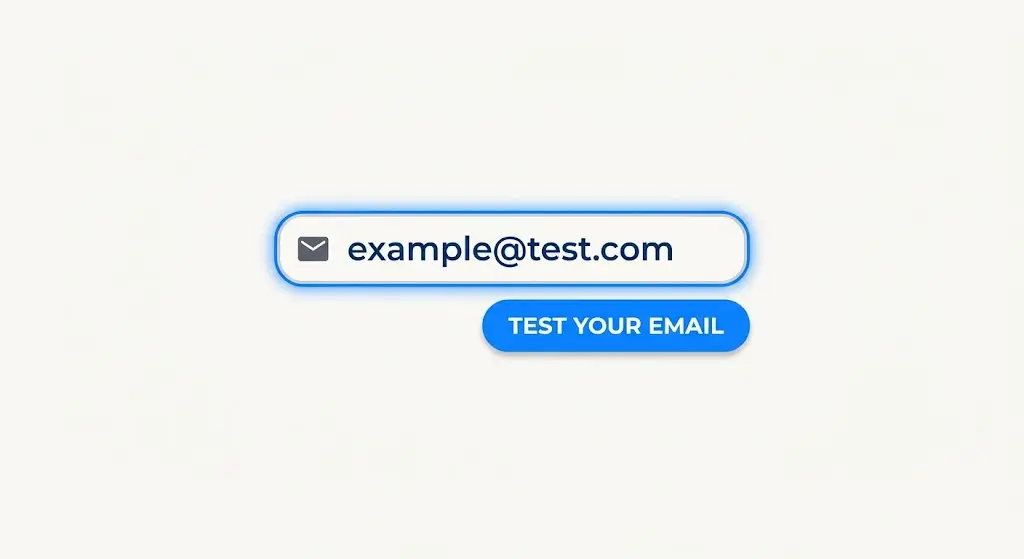
Don’t skip this step. A mailbox that looks fine can still fail in practice.
Send a message from your new address to an external address, like a personal Gmail account. Then reply to it from that account.
Check that messages arrive in both directions. Also check where your outgoing message lands. If it goes to spam, your authentication records may need attention.
If something isn’t working, run through a short checklist. Check your DNS records first, since mistakes there are the most common cause.
Then check the mailbox credentials. Finally, go back through the provider’s setup instructions to see if you missed a step.
Common Mistakes to Avoid When Creating a Professional Email
1) Choosing an Unclear Email Address
Your address should be easy to read, easy to remember and clearly linked to your business. Avoid strings of numbers, odd spellings and cute nicknames.
If someone has to ask how to spell it, it’s too complicated. Simple role-based addresses like info@ or support@ work well, and personal ones like firstname@ add a human touch.
2) Forgetting Email Authentication Records
Many people set up the mailbox and stop there. But without SPF, DKIM and DMARC configured the way your provider instructs, your emails are more likely to land in spam.
Authentication records also help protect your domain from being faked. Set them up on day one, and check them again if you change providers.
3) Using Weak Passwords
A business mailbox holds invoices, contracts and customer details. A weak password is an open door.
Use a long, unique password for every mailbox, and never reuse one from another account. Turn on multifactor authentication where your provider offers it.
4) Ignoring Renewal Costs
A low first-year price can hide a much higher renewal rate. Before you buy, check the renewal price and the billing period.
Work out the total cost over two or three years, not just the first one. That keeps you from nasty surprises when the bill comes round.
5) Creating Shared Logins for Every Employee
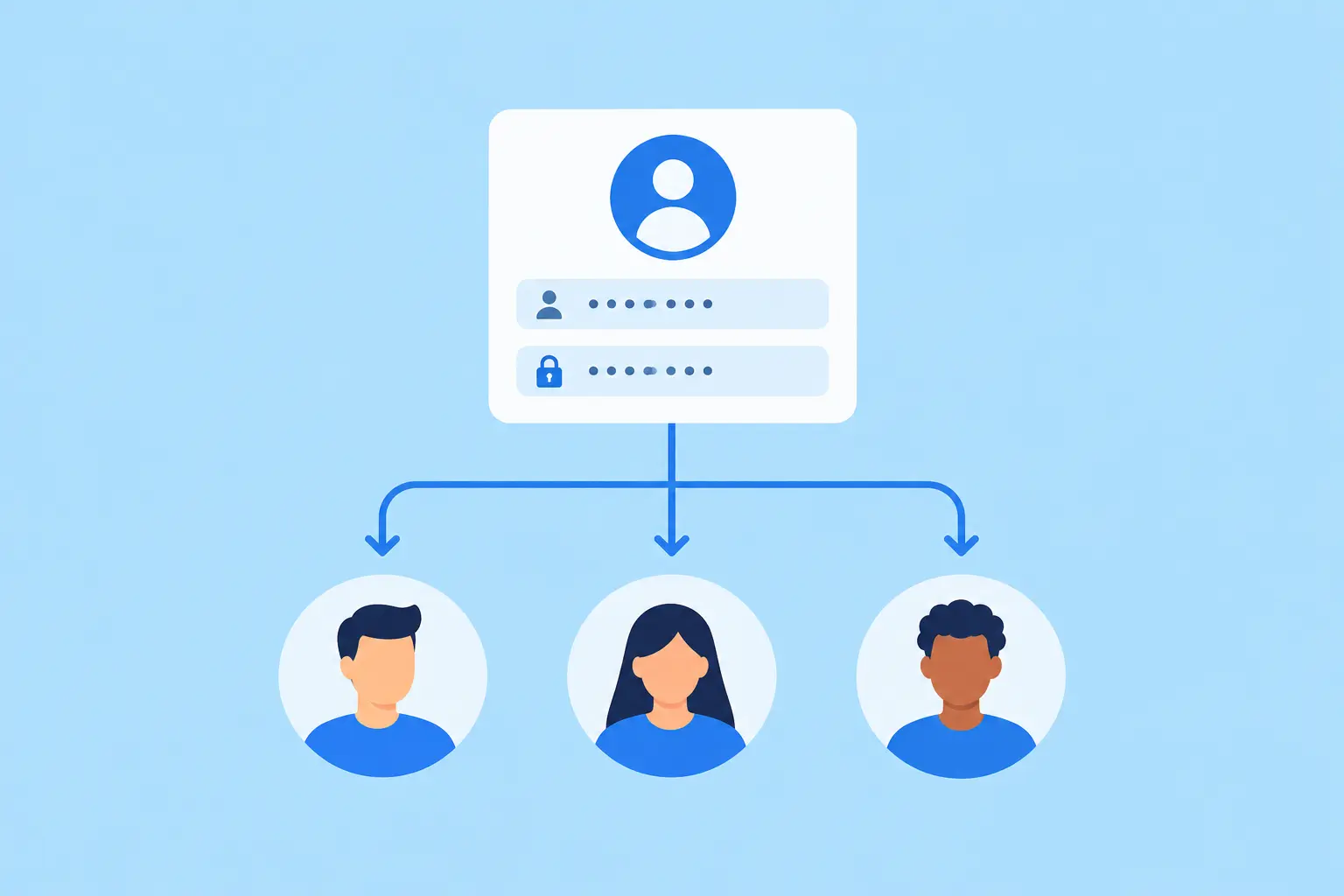
Handing one shared password to the whole team is risky. You can’t tell who did what, and removing someone’s access means changing the password for everyone.
Separate mailboxes for each employee, or properly configured shared addresses, give you better control. When a staff member leaves, you can shut off their access without disrupting the rest of the team.
Create Your Professional Email With Truehost
By now you know the steps. You need a domain, an email hosting plan and the right DNS records. The next move is choosing where to host.
With a custom domain and an email hosting service, you can have addresses that match your brand and fit your team.
Truehost Ghana is one place to look. Compare its current plans, mailbox limits and pricing against your needs, and pick the one that makes sense for your business.
Ready to create your professional email? Take the first step today.
Ready to set up a business email address? Visit Truehost to explore available email hosting options and choose a plan that fits your team.