 Domains SearchSearch available domain names and claim yours in just a few clicks.
 .GH DomainsFind and register a trusted .gh domain for your business or idea.
 Web HostingAffordable web hosting solutions designed for performance, uptime, and scalability.
 cPanel HostingManage your website without the stress. cPanel hosting gives you everything in one place.
 Reseller HostingCreate, manage, and grow your hosting clients using reliable reseller hosting tools.
 Windows HostingWindows hosting that works smoothly with Microsoft frameworks and applications.
 Email HostingProfessional email hosting that keeps your business communication reliable and secure.
 WordPress HostingFast and secure WordPress hosting optimized for smooth performance and easy management.
 Affiliate ProgramEarn commissions by referring customers to our hosting and domain services.
 .COM Domains
 All DomainsFind the right Ghana domain for your brand and lock it in fast.
 Domain TransferMove your domain to us with a smooth, secure transfer process.
 Whois LookupCheck domain ownership and registration details instantly with our WHOIS lookup.
 SSL CertificatesSecure your website and protect your visitors with trusted SSL certificates.
 VPS HostingUpgrade to VPS hosting today and enjoy better speed, uptime, and flexibility.
 Managed VPSManaged VPS for businesses and developers who want full control without server management worries.
 Dedicated ServersGet maximum speed and reliability with dedicated servers built for serious websites and apps.
 AI Website BuilderStart your website today with our AI builder and go live in minutes.
 Online ShopStart selling online today with your own professional online shop.
 Web Design ServiceProfessional web design services that make your brand stand out online.
 Local SEO
 BlogHelpful articles, tutorials, and updates for building your online presence.
 Contact UsNeed help or more information? Connect with us anytime.
So you have done the hard part.
You picked a domain name, something that feels like you.
Maybe it is your business name, your full name, or that clever phrase you stayed up late thinking about.
You have also got a website ready to go, all built out on Truehost website builder, WordPress, Wix, GoHighLevel, or maybe even a custom design.
But here is the thing, right now, your domain and your website are like two friends who’ve never been introduced.
One is just sitting there registered, the other is living on a server somewhere, and they have no idea how to find each other.
That is exactly what we are fixing today.
Connecting your domain to your website sounds technical, and yeah, there is some jargon involved.
But once you see how it works, you will wonder why you ever felt nervous about it.
In this guide, I will show you exactly how to connect domain to your hosting step by step.
We will use Truehost as our local reference, but the same steps apply no matter where you bought your domain.
By the time you finish reading, you will be ready to click that “verify” button and watch your site come alive.
Let’s jump in.
What You Will Need Before You Start
Before we start clicking around, let us get organized. You will need three things within reach:
1) Your domain registrar login: the account where you bought your domain. If you used Truehost, that is your Truehost client area. If you used GoDaddy, Namecheap, or another registrar, you will log in there.
2) Your hosting account login: the platform where your website files live. This could be a WordPress hosting account, Wix, Squarespace, or something like GoHighLevel.
3) The keys from your host: you will need either:
- Nameservers: usually two to four addresses that look like ns1.truehost.com or dns1.yourhost.com.
- An IP address: a numeric address like 192.168.1.1 that points directly to your server.
If you haven’t grabbed those yet, log into your hosting account first.
Most hosting providers display them right on the dashboard or in a welcome email.
Step 1: Get Your Hosting DNS Details
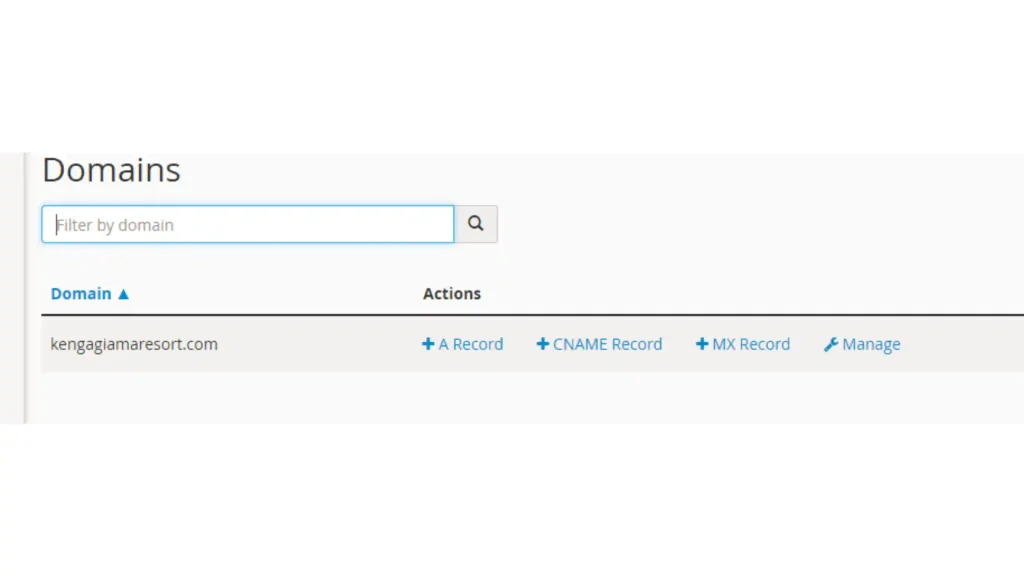
Head over to your website builder or hosting account, the place where your website is actually built or stored.
Once you are logged in, you are looking for either:
- Nameservers
These are the simplest way to connect your domain.
When you point your domain to your host’s nameservers, your host automatically handles all the technical DNS records for you.
It is like giving your domain a new address and letting the host do the rest.
- IP Address
This is a unique number assigned to your server.
Some hosting providers give you a dedicated IP address so you can point your domain directly to that server.
It is a bit more manual but gives you more control.
If you are using a popular platform like Wix or Squarespace, they usually give you nameservers to use.
If you are on a traditional cPanel hosting plan, you will likely have both an IP address and nameservers available.
Can’t find them? Search your host’s knowledge base for “how to find my nameservers” or check their support documentation.
Once you have them, keep them handy.
Step 2: Log in to Your Domain Registrar
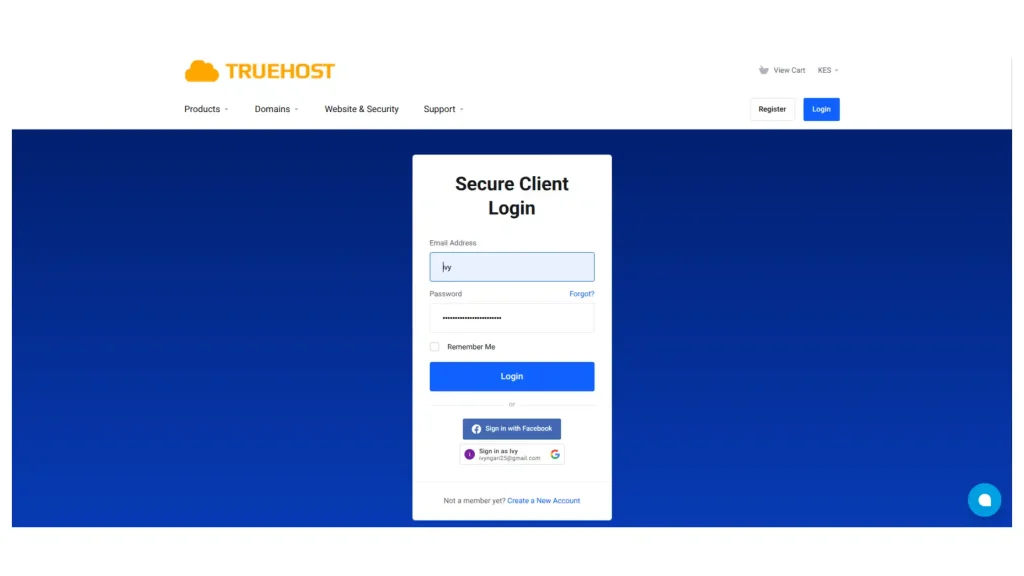
Now go to where you bought your domain.
If you are a Truehost user, log into your Truehost client portal. If your domain is elsewhere, log into that account.
Take a moment to appreciate that you are about to connect the two most important pieces of your online presence. Feels good, right?
Step 3: Navigate to DNS Management
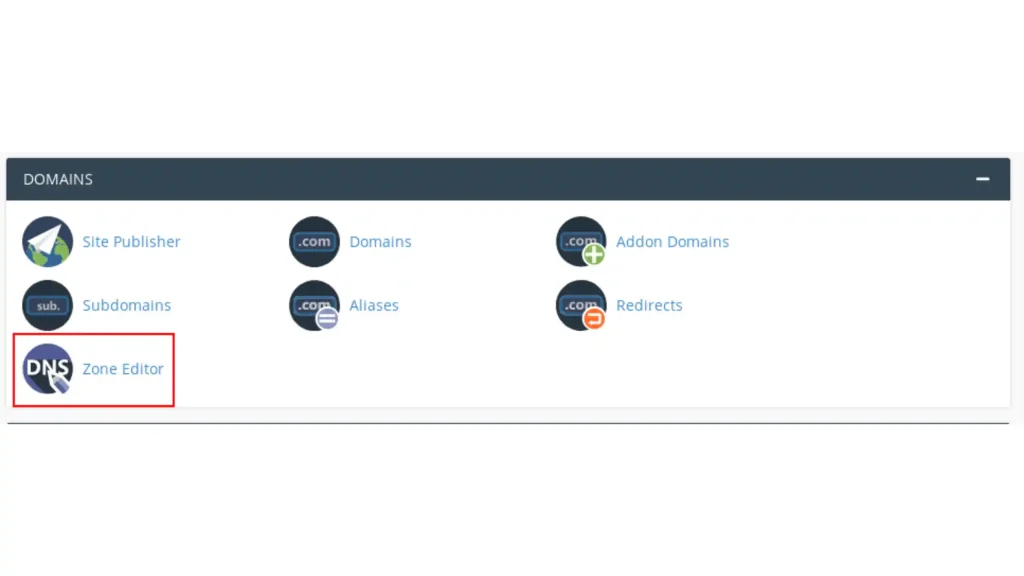
Inside your domain registrar’s dashboard, you need to find the place where you can edit your domain’s technical settings.
Look for a menu item that says:
- DNS Management
- DNS Settings
- Advanced DNS
- Zone Editor
If you are using Truehost, here is exactly where to go: after logging in, click Services → Domains, then click on the domain name you want to connect.
You will see options like Manage DNS or Nameservers depending on what you want to change.
If you are using another registrar, the words might be slightly different, but the logic is the same.
You are looking for the place where you can edit records or change nameservers.
Step 4: Choose Your Connection Method
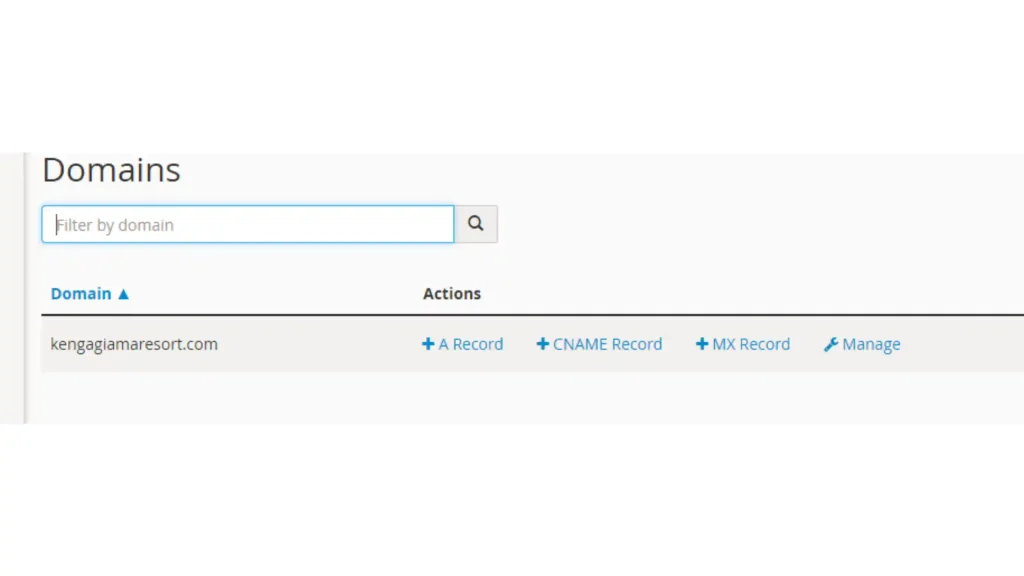
You have two ways to make the connection. Choose one, don’t do both.
Method A: Using an A Record (Pointing to an IP Address)
Use this if your hosting provider gave you an IP address.
This method is great if you want to keep control of your DNS settings (like email records) at your registrar while just pointing the website to your host.
1) Find and edit the A Record for @
In your DNS records table, look for an A record with the name @.
The @ symbol represents your root domain, so yourdomain.com without the www.
Click edit, paste the IP address from your host, and save.
2) Find and edit the CNAME Record for www
Now look for a CNAME record with the name www. It should point to @ (or sometimes to your full domain like yourdomain.com).
If you don’t see one, create a new CNAME record with name www and value @.
This makes sure that both yourdomain.com and www.yourdomain.com go to the same place.
That is it. You have manually pointed your domain to your host’s server.
Method B: Using Nameservers (The Easier Way)
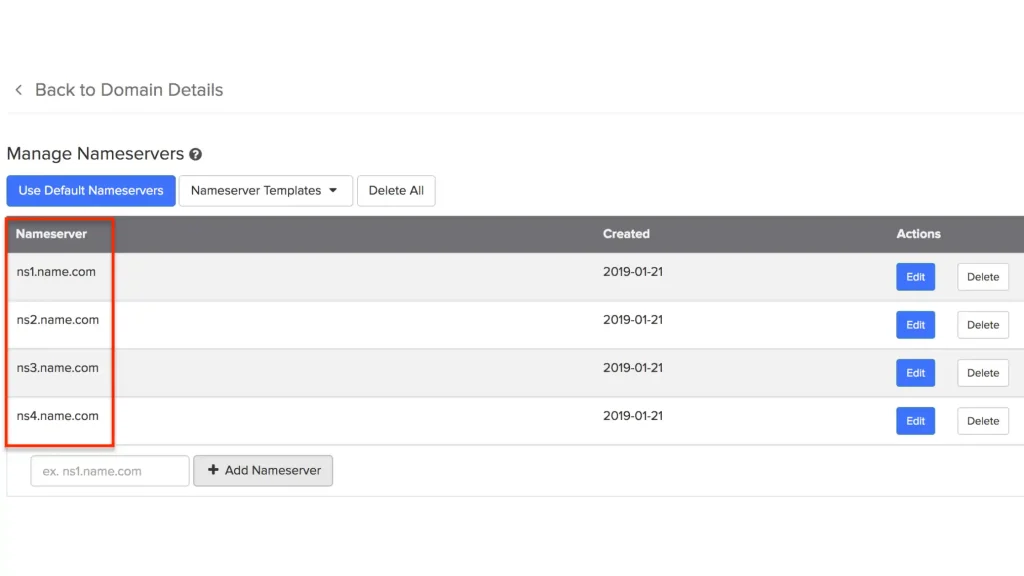
Use this if your hosting provider gave you nameservers.
This is often the easiest route because after you make the switch, your host takes over all the DNS management.
That means if you ever need to add a subdomain or change email settings, you do it inside your hosting account instead of your registrar.
1) Find the Nameservers section
Look for an option that says Nameservers. Sometimes it is right on the domain overview page.
2) Switch to custom nameservers
Select Custom Nameservers (the wording might be Use custom nameservers or Enter custom nameservers).
3) Replace the existing ones
Delete whatever nameservers are currently listed (usually your registrar’s defaults).
Then enter the nameservers you got from your host.
They often come in pairs, like:
ns1.truehost.comns2.truehost.comSave your changes.
Pro tip: If you use your domain for email, like
[email protected], and you choose Method B (nameservers), take a moment to write down your current MX records before you change anything.Those MX records are what make your email work. After the nameserver change, you will need to recreate those MX records inside your new host’s DNS zone to keep email flowing.
If you use Method A (A record), your email settings stay exactly as they are, because you are only updating the web records. That is one reason some people prefer Method A if they have complex email setups.
Step 5: Verify the Connection
Now head back to your website builder or hosting platform.
Most modern platforms have a Verify Domain or Connect Domain button somewhere in the settings.
Click it. If everything was set up correctly, you will see a happy green checkmark or a status that says Connected.
If your platform doesn’t have a verify button, just open a new browser tab and type your domain name exactly as it is (for example, yourbusiness.com).
If your website loads, or even if you see a placeholder page from your host, you are good to go.
One thing to keep in mind, DNS changes don’t happen instantly.
It is called propagation, and it is basically the time it takes for all the internet’s servers around the world to update with your new settings.
It can take anywhere from a few minutes to 48 hours.
So if you click verify and it says pending, don’t panic. Give it some time, grab a coffee, and check back later.
You Did It
Seriously, well done.
You have just completed one of the most important technical steps in launching a website.
It might have looked intimidating at first, but now you know exactly how to connect a domain to a website, whether you use an A record or nameservers.
From here on out, your domain and your site are officially linked.
Be it that you are launching a business, a blog, or a personal project, you have removed the biggest hurdle.
Share your link, celebrate a little, and enjoy being live.
And if you are a Truehost user, remember that our support team is pretty responsive if you ever get stuck, but honestly, after walking through this guide, you probably won’t need them.
Now go show the world your new site.